
Perfect Ear
Perfect Ear
New singers often have difficulty matching pitches—that is, accurately singing a pitch immediately after hearing it. This does not mean you’re “tone deaf”! In most cases, difficulty with pitch-matching is easily overcome in a matter of weeks or even days through effective training.
The most effective tool I’ve found for students seeking to train their pitch-matching skills between lessons is an app called “Perfect Ear,” which is available for Android and (with somewhat limited functionality*) iOS devices. (Note that while Perfect Ear provides assistance with a multitude of musical skills, these instructions focus simply on pitch-matching.)
*If you’re an iOS user and have difficulty with PerfectEar, you may find Singing Carrots easier to use.
Getting started
- Visit perfectear.app and click the appropriate button to install the app to your Android or iOS device.
- Open the app on your device and navigate to the main Settings page.
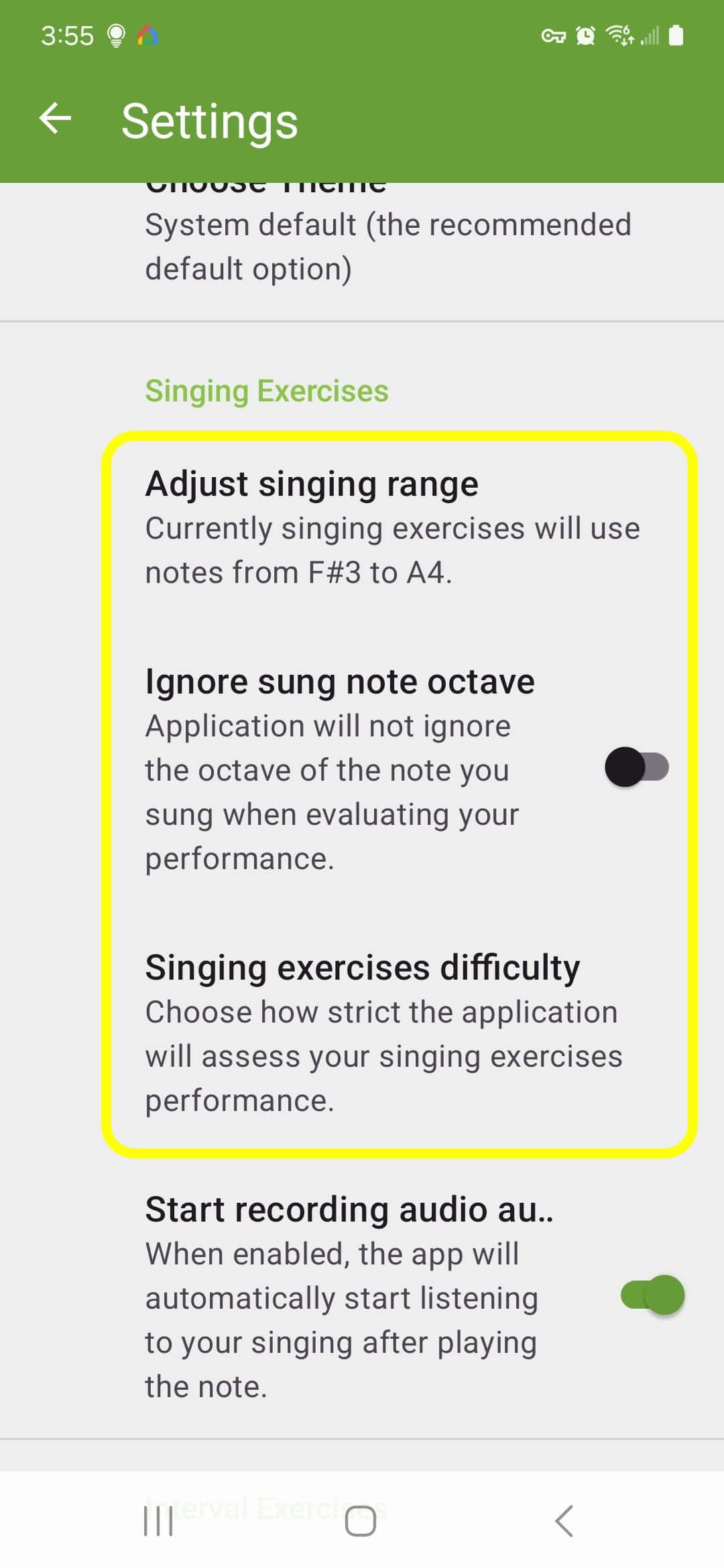
- In the “Singing Exercises” section of the settings, tab Adjust singing range and drag the green dots to indicate your preferred singing range. (Unless I’ve given you other recommendations, start with A3-A4 if you tend to sing traditional women’s roles, or C3-C4 if you tend toward traditional men’s roles.)
- Return to the settings page and make sure Ignore sung note octave is turned OFF. (I.e., you do NOT want the app to ignore the octave you sing.)
- Tap Singing exercises difficulty and set this to Relaxed. (Just trust me on this one. 😜)
Feel free to adjust any of the other settings to suit your own personal preferences.
Launching the exercise
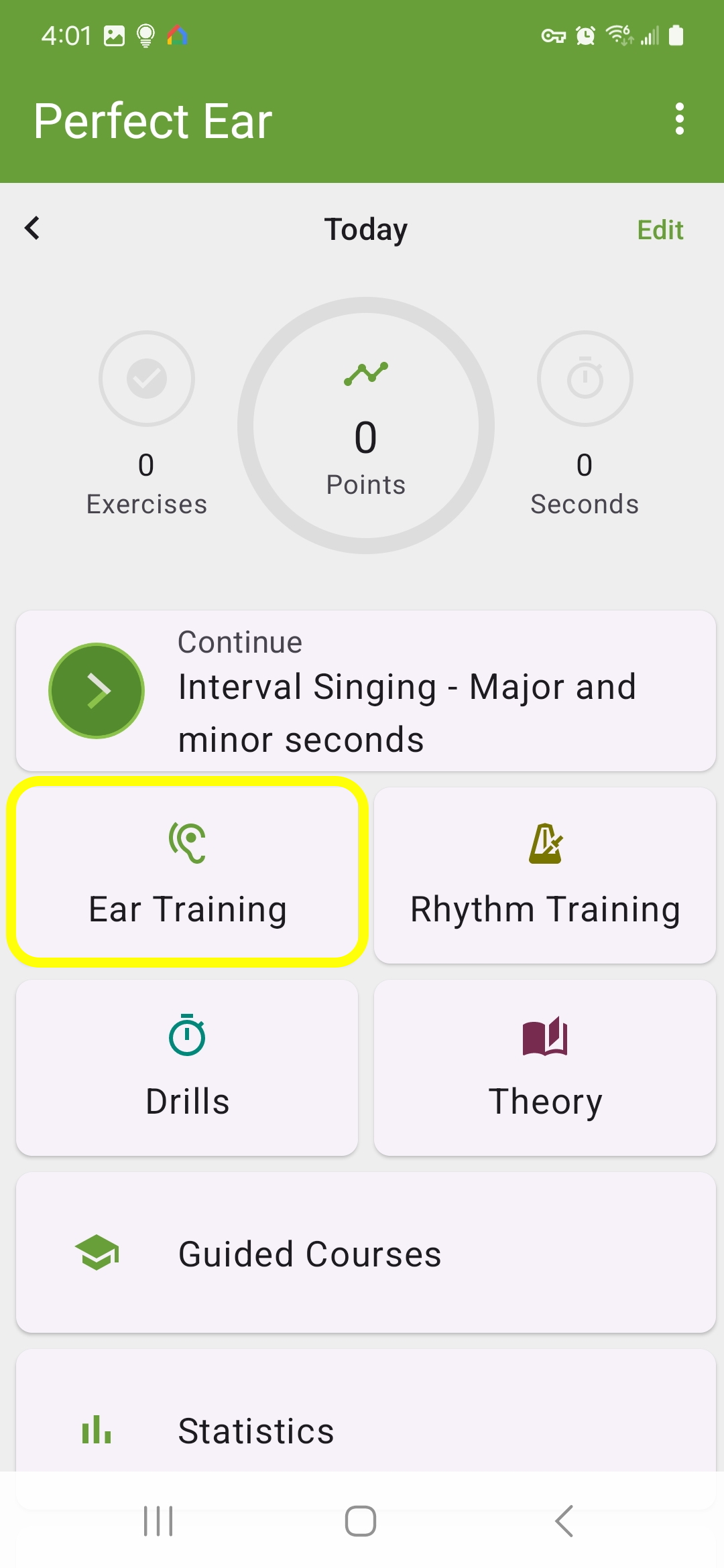
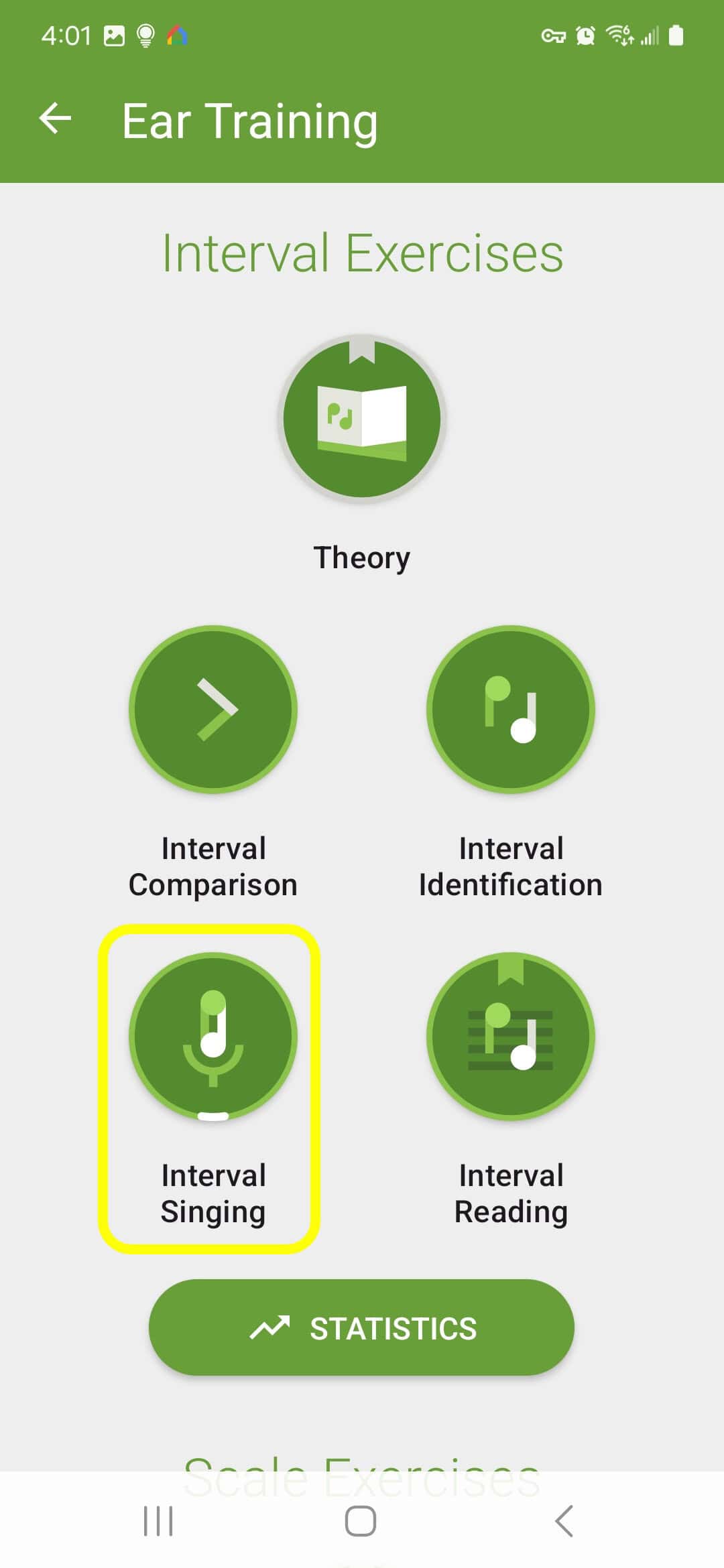
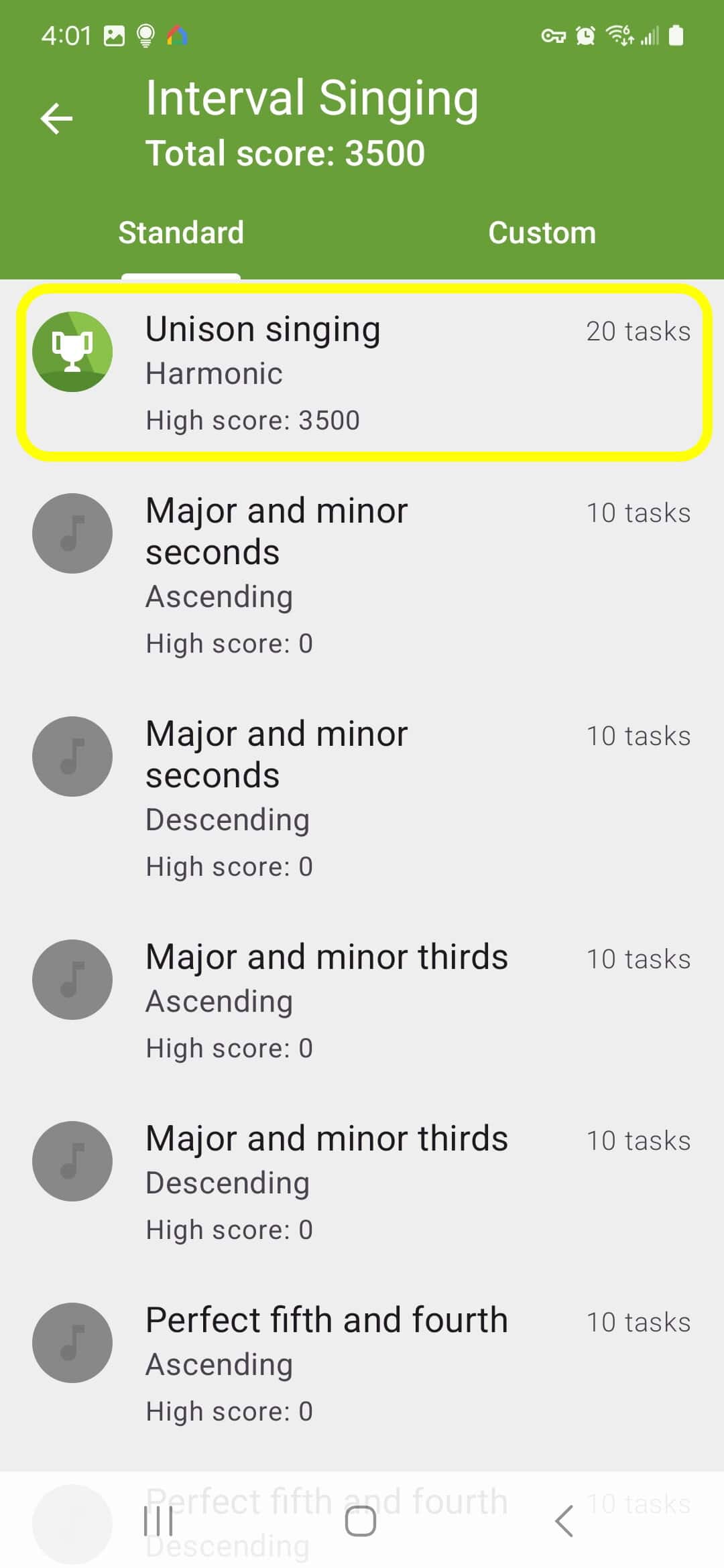
From the app landing page, tap “Ear Training,” then “Interval Singing,” then “Unison singing.”
Make sure the volume is turned up on your device, then tap “Start Exercise.”
How it works
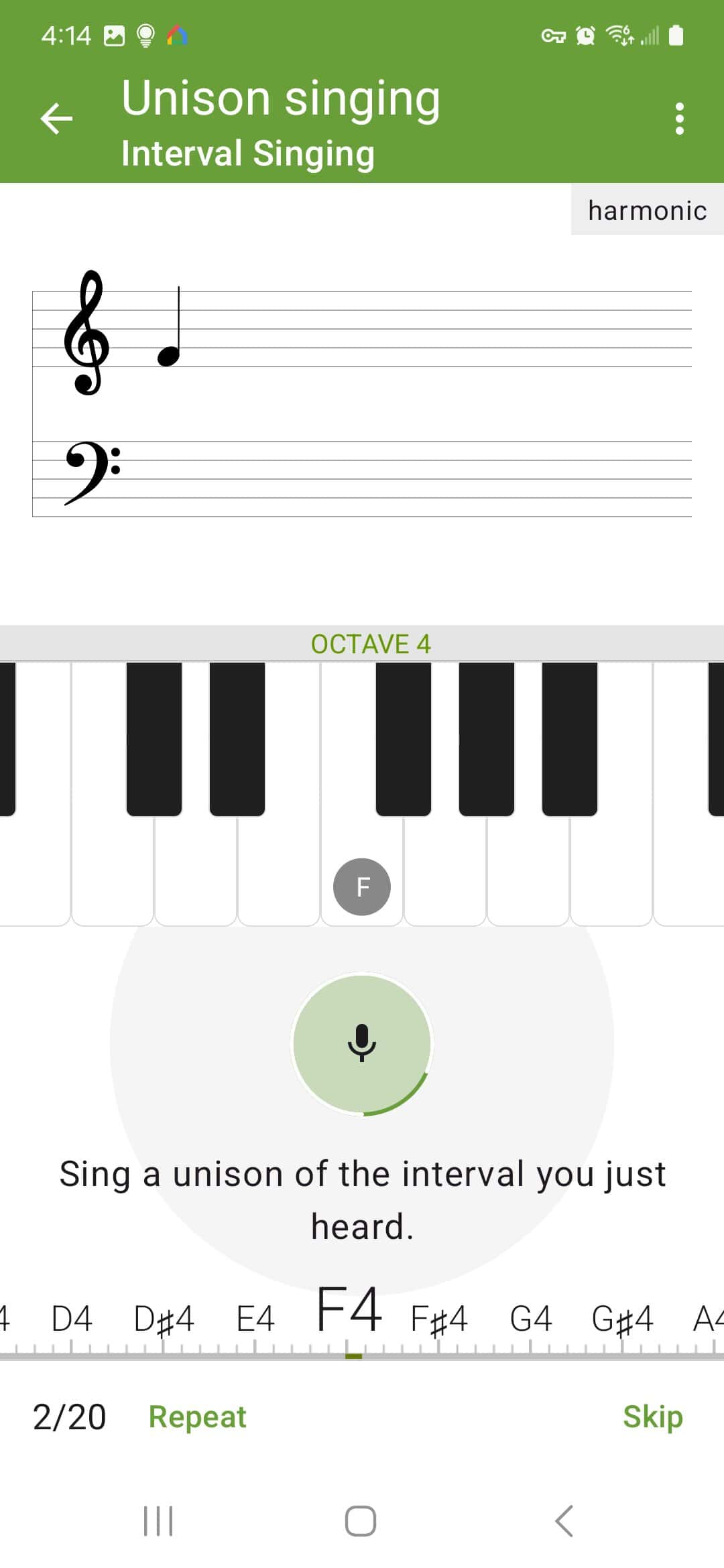
The app will play a random note within the singing range you selected earlier, and show you a visual representation of the note both on the grand staff and on a piano keyboard.
Sing the pitch back to the app on a sustained vowel (something like “doo,” “doh,” or “dah”) and hold the pitch until the dark green circle around the microphone icon completely disappears and you hear either a celebratory “ba-ding!” (indicating that you were accurate in tyour pitch-matching) or a percussive “dig-a-dum” (indicating that the note you sang was either above or below the indicated pitch).
Pointers
- As you’re holding your pitch, you may find it helpful to watch the sliding pitch scale at the bottom of the screen, which will indicate where your pitch is compared to the target pitch. (The smaller the red bar, the better!)
- If the dark green circle doesn’t disappear, it’s a sign that your pitch is wavering up and down—try to hold your pitch constant.
- If you get more “dig-a-dums” than “ba-dings,” don’t worry! Just note your score at the end of the exercise, and see if you can do better tomorrow!